
How to Use BrowserScan with UAParser.js for Browser Audits
BrowserScan shows you what a website can observe about your browser in real time. UAParser.js turns the raw User-Agent string and Client Hints into structured fields your code can act on. Used together, they close a gap that neither tool fills alone: BrowserScan tells you what is exposed, and UAParser.js tells you how that exposure gets interpreted server-side.
This article explains the workflow, the setup steps, practical examples, and the problems the combination solves.
Why pair BrowserScan with UAParser.js?
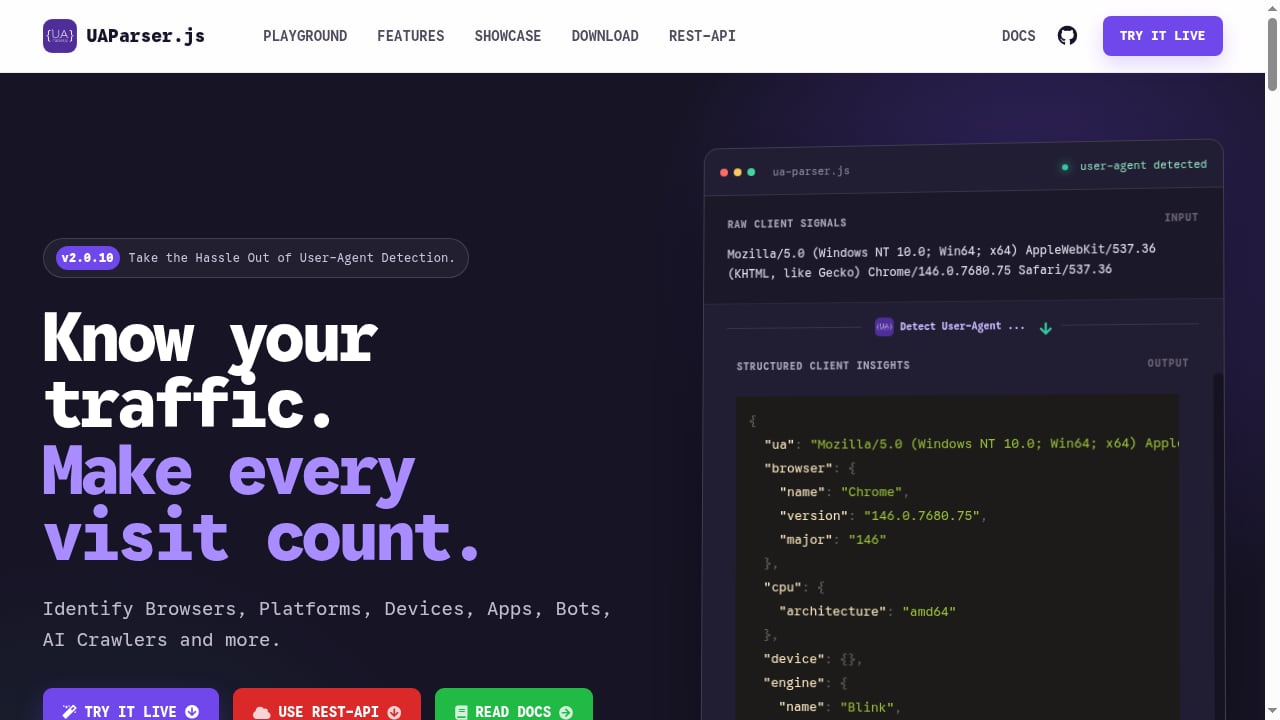
First viewport screenshot of uaparser.dev.
BrowserScan is a free online tool that analyzes browser fingerprints and privacy leaks. It reports your IP address, timezone, location, ISP, proxy status, blacklist status, and a fingerprint authenticity score. It also runs bot detection signals such as WebDriver and CDP indicators, plus DNS leak, WebRTC leak, canvas fingerprint, plugin, client hints, and browser kernel checks.
UAParser.js is a JavaScript library and REST API for detecting browsers, operating systems, devices, CPU architectures, apps, bots, and AI crawlers from User-Agent strings and Client Hints. It returns structured client insights such as browser name and version, OS name and version, and device type. It is roughly 11.9 kB minified and gzipped, distributed via npm, and works in both browsers and Node.js.
The two tools answer different questions:
- BrowserScan answers: What can this browser reveal about me right now?
- UAParser.js answers: How will a server classify the signals this browser sends?
A privacy audit needs both answers. A fingerprint that looks clean in the browser can still be misclassified by a parser, and a parser can only be as accurate as the signals it receives.
The combined workflow at a glance
- Baseline the browser. Run BrowserScan to capture your fingerprint, leak results, and bot signals.
- Capture the raw signals. Record
navigator.userAgentand theSec-CH-UA-*headers your browser sends. - Parse them. Feed those signals into UAParser.js on the client or server.
- Compare. Check whether the parsed browser, OS, and device match what BrowserScan reported.
- Fix or document. Adjust configuration, headers, or test expectations, then re-run both tools.
Step 1: Run a BrowserScan baseline
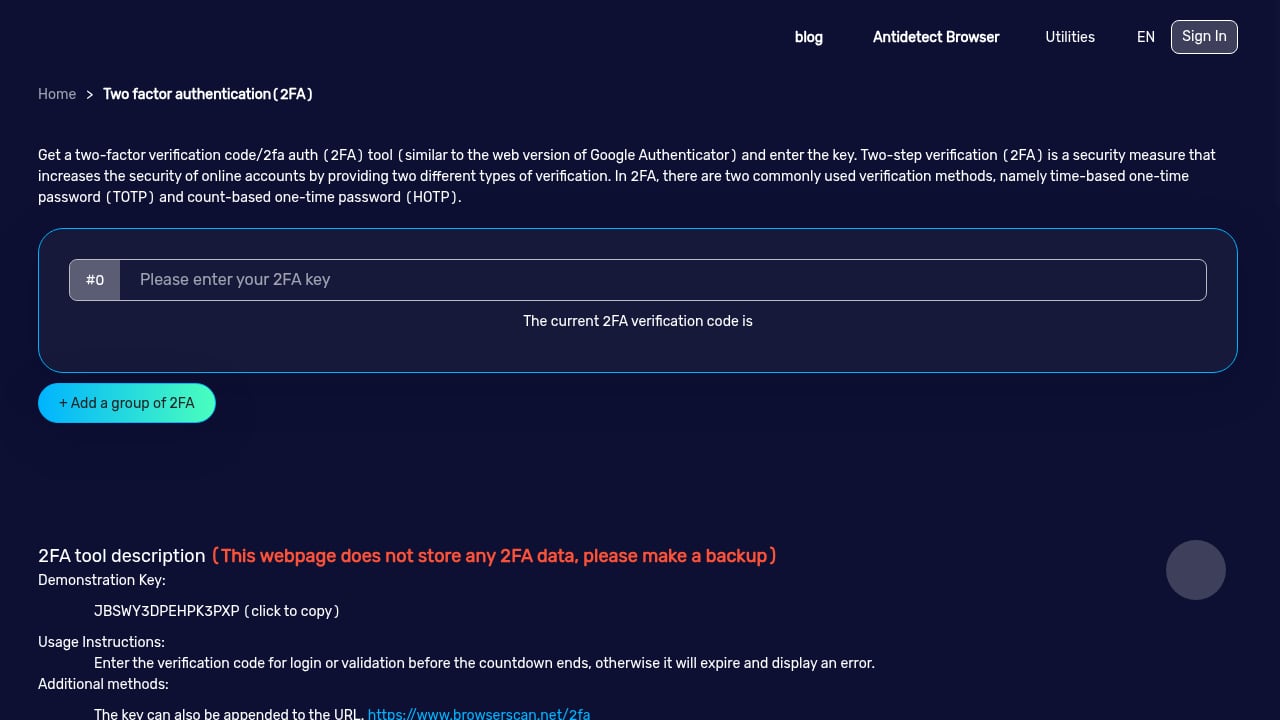
First viewport screenshot of www.browserscan.net.
Open BrowserScan and run the main fingerprint test first. Note the following:
- The reported browser name and version, OS, and device type
- The fingerprint authenticity score
- Bot detection signals (WebDriver, CDP, navigator properties)
- Client Hints values, if your browser sends them
- DNS and WebRTC leak results, plus IP, timezone, and proxy status
Save a screenshot or export the values. This is your reference point for every later comparison.
If you are auditing a proxy or VPN setup, also run the leak tests before changing anything. For a deeper look at IP-level exposure, see bulk IP analysis for browser fingerprint privacy.
Step 2: Capture the raw signals
In the browser console, collect the strings your code will parse:
console.log(navigator.userAgent);
console.log(navigator.userAgentData?.brands);
console.log(navigator.userAgentData?.mobile);
On the server side, log the incoming request headers:
console.log(req.headers['user-agent']);
console.log(req.headers['sec-ch-ua']);
console.log(req.headers['sec-ch-ua-platform']);
console.log(req.headers['sec-ch-ua-mobile']);
These are the same inputs UAParser.js consumes. Keeping a copy makes mismatches reproducible.
Step 3: Set up UAParser.js
Client-side setup
Install the package or load it from a CDN:
npm install ua-parser-js<script src="https://cdn.jsdelivr.net/npm/ua-parser-js/dist/ua-parser.min.js"></script>Then parse the current browser:
const uap = new UAParser();
const result = uap.getResult();
console.log(result.browser); // { name, version, major, type }
console.log(result.os);      // { name, version }
console.log(result.device);  // { model, type, vendor }
console.log(result.cpu);     // { architecture }
Server-side setup with Client Hints
Since v2.0.0, UAParser.js can accept Client Hints alongside the User-Agent header. Client Hints only work in a secure context (localhost or HTTPS) and in Chromium-based browsers from version 85 onward:
const http = require('http');
const uap = require('ua-parser-js');

http.createServer(function (req, res) {
  const hints = 'Sec-CH-UA-Full-Version-List, Sec-CH-UA-Mobile, Sec-CH-UA-Model, Sec-CH-UA-Platform, Sec-CH-UA-Platform-Version, Sec-CH-UA-Arch, Sec-CH-UA-Bitness';
  res.setHeader('Accept-CH', hints);
  res.setHeader('Critical-CH', hints);

  const result = uap(req.headers).withClientHints();
  res.end(JSON.stringify(result, null, 2));
}).listen(1337, '127.0.0.1');
For the full API surface, see the UAParser.js documentation and the HTML quickstart.
Step 4: Compare BrowserScan and UAParser.js output
First viewport screenshot of www.browserscan.net.
Put the two reports side by side. The table below shows what a match and a mismatch look like.
| Signal | BrowserScan shows | UAParser.js returns | What a mismatch means |
|---|---|---|---|
| Browser | Chrome 139 | browser.name: "Chrome", version: "139.0.0.0" |
A spoofed or rewritten User-Agent |
| OS | macOS 15.6 | os.name: "macOS", version: "15.6" |
Client Hints and User-Agent disagree |
| Device type | Desktop | device.type: "desktop" |
Mobile emulation or a modified string |
| Bot signals | WebDriver detected | isBot() returns true |
Automation is visible to both layers |
UAParser.js also exposes helper methods such as isChromeFamily(), isBot(), and isAICrawler(). Use them to classify traffic the same way your backend would.
Example: catching a spoofed User-Agent
Suppose BrowserScan reports Firefox on Windows, but your server logs show a Chrome User-Agent with a Linux platform hint. Parse the request headers:
const { browser, os } = uap(req.headers).withClientHints();
if (browser.name === 'Chrome' && os.name === 'Windows') {
  // flag: browser report and server parse disagree
}
That disagreement is exactly the kind of inconsistency fingerprinting systems look for. BrowserScan surfaces it from the browser side; UAParser.js surfaces it from the server side.
Step 5: Validate bot and automation detection
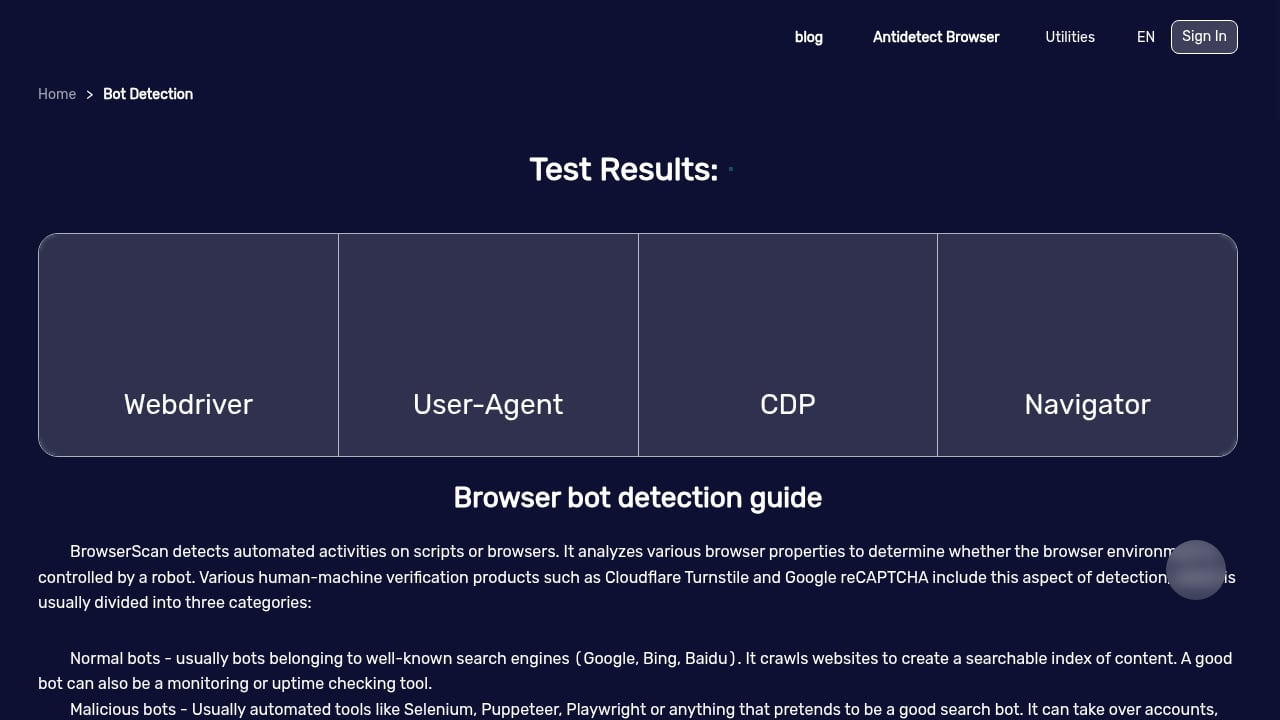
First viewport screenshot of www.browserscan.net.
BrowserScan's bot detection checks WebDriver, CDP, and navigator properties. UAParser.js adds a second layer by classifying known bot and AI crawler User-Agent strings. Run both against the same environment:
- If BrowserScan flags automation but UAParser.js sees a normal browser string, the automation is hiding its User-Agent.
- If UAParser.js flags a bot but BrowserScan shows clean browser signals, the client may be a headless browser with a rewritten string.
Either pattern is worth investigating before you trust a test environment.
Step 6: Re-test after changes
After adjusting headers, proxy settings, or browser configuration, repeat the loop: BrowserScan baseline, raw signal capture, UAParser.js parse, comparison. Keep the previous results so you can see which change moved which signal.
Problems the combination solves
- Blind spots in privacy audits. BrowserScan shows exposure; UAParser.js shows interpretation. Together they cover both sides of the request.
- Spoofing detection. Comparing parsed output against browser-reported values reveals inconsistencies that a single tool misses.
- Analytics accuracy. Teams that segment traffic by browser or device can verify their parser against a live fingerprint report.
- Bot triage. Two independent signals make automation detection more reliable than either alone.
- Client Hints debugging. BrowserScan shows what hints are sent; UAParser.js shows how they are read.
When to use one tool instead of both
Use BrowserScan alone when you only need a quick privacy check, a leak test, or a fingerprint authenticity score. It requires no setup.
Use UAParser.js alone when you are building analytics, personalization, or traffic classification and do not need to audit the browser's own exposure.
Use both when you are validating a privacy setup, debugging a parser, testing a proxy or VPN, or investigating inconsistent traffic classification. For a broader comparison of fingerprinting tools, see BrowserScan vs Pixelscan.dev and WebBrowserTools and the 2026 browser privacy testing ranking.
Related reading
- BrowserScan vs VPN Master Pro IP Checker: 2026 Comparison - Compare BrowserScan and VPN Master Pro IP Checker for fingerprinting, leak tests, and privacy audits. See which tool reveals more and which upsells a VPN.
- DeviceAtlas Review: Device Intelligence for Real-Time Targeting - Evidence-based DeviceAtlas review covering device intelligence use cases, ideal users, setup, pricing signals, strengths, limitations, and decision criteria.
Sources and further reading
- UAParser.js: JavaScript User-Agent Parser & Device Detector - Detect browsers, operating systems, devices, CPU architectures, apps, bots, and AI crawlers from User-Agent strings and Client Hints with UAParser.js.
FAQ
Does BrowserScan use UAParser.js?
BrowserScan is an independent online testing platform. UAParser.js is a separate JavaScript library. They are complementary tools, not components of one product.
Can I run UAParser.js in the browser and on the server?
Yes. UAParser.js is isomorphic and works in browsers and Node.js with a single API. Client Hints parsing requires a secure context.
What is the difference between a fingerprint and a User-Agent parse?
A fingerprint is a combination of many browser and device signals. A User-Agent parse is a structured reading of one or two of those signals. BrowserScan reports the fingerprint; UAParser.js structures the User-Agent and Client Hints.
Why do BrowserScan and UAParser.js sometimes disagree?
Disagreements usually come from spoofed User-Agent strings, missing Client Hints, browser extensions that rewrite headers, or outdated parser data. Comparing both outputs is how you find them.
Is UAParser.js free to use?
UAParser.js is distributed via npm and has a long maintenance history on GitHub. Check its official site for current licensing and package options.
Conclusion
BrowserScan and UAParser.js solve different halves of the same problem. BrowserScan reveals what your browser exposes; UAParser.js shows how a server turns those signals into browser, OS, device, and bot classifications. Run BrowserScan first, capture the raw signals, parse them with UAParser.js, and compare. That loop turns a one-off privacy check into a repeatable audit you can trust.
;}.cls-2{fill:%230868f7;}.cls-3{fill:url(%23未命名的渐变_44);}.cls-4{fill:%23333;}%3c/style%3e%3clinearGradient%20id='未命名的渐变_8'%20x1='33.73'%20y1='100.61'%20x2='-0.03'%20y2='-1.06'%20gradientUnits='userSpaceOnUse'%3e%3cstop%20offset='0'%20stop-color='%237ae9fb'/%3e%3cstop%20offset='0.67'%20stop-color='%232b90f8'/%3e%3cstop%20offset='1'%20stop-color='%230868f7'/%3e%3c/linearGradient%3e%3clinearGradient%20id='未命名的渐变_44'%20x1='27.86'%20y1='18.67'%20x2='68.36'%20y2='22.22'%20gradientUnits='userSpaceOnUse'%3e%3cstop%20offset='0'%20stop-color='%235ac7f2'/%3e%3cstop%20offset='1'%20stop-color='%230868f7'/%3e%3c/linearGradient%3e%3c/defs%3e%3cpath%20class='cls-1'%20d='M29,28.74V81.91l-9.51-3.68v0L8.52,74A7.17,7.17,0,0,1,4,67.32V24.54A3.76,3.76,0,0,1,9.08,21Z'/%3e%3cpath%20class='cls-2'%20d='M68.09,78.07a13.15,13.15,0,0,1-17.9,12.06L29,81.91h0V28.74L50.19,37A13.17,13.17,0,0,0,68.08,25.3h0Z'/%3e%3cpath%20class='cls-3'%20d='M68.08,25.3a13.19,13.19,0,0,1-6.73,10.87A13.09,13.09,0,0,1,50.19,37L29,28.74V6A3.76,3.76,0,0,1,34.1,2.52l25.59,9.91A13.22,13.22,0,0,1,68.08,25.3Z'/%3e%3cpath%20class='cls-4'%20d='M129.06,81.76a4.33,4.33,0,0,1-3.19-1.31,4.4,4.4,0,0,1-1.31-3.24V56.86H97.65V77.21a4.36,4.36,0,0,1-1.35,3.2A4.68,4.68,0,0,1,93,81.76a4.32,4.32,0,0,1-3.19-1.31,4.37,4.37,0,0,1-1.32-3.24V27.27A4.58,4.58,0,0,1,89.83,24a4.59,4.59,0,0,1,7.82,3.27V48.15h26.91V27.27A4.58,4.58,0,0,1,125.91,24a4.59,4.59,0,0,1,7.82,3.27V77.21a4.37,4.37,0,0,1-1.36,3.2A4.65,4.65,0,0,1,129.06,81.76Z'/%3e%3cpath%20class='cls-4'%20d='M163.77,81.66c-6.57,0-11.76-1.92-15.44-5.7s-5.54-9.07-5.54-15.74a26.76,26.76,0,0,1,2.09-10.43,17.72,17.72,0,0,1,6.67-8.06,19.15,19.15,0,0,1,10.68-2.95,19,19,0,0,1,10.46,2.8,18.7,18.7,0,0,1,6.55,7.36,22.53,22.53,0,0,1,2.36,10.28A4.51,4.51,0,0,1,177,63.77H152.23a10.8,10.8,0,0,0,3.49,6.65c2,1.68,4.88,2.52,8.66,2.52a22.25,22.25,0,0,0,7.54-1.21c.74-.3,1.55-.67,2.37-1.07a3.75,3.75,0,0,1,1.84-.4,4.09,4.09,0,0,1,3,1.15,4,4,0,0,1,1.12,3,4.38,4.38,0,0,1-2.58,3.82,32.34,32.34,0,0,1-6.36,2.61A28.67,28.67,0,0,1,163.77,81.66ZM172.4,55.9a9.72,9.72,0,0,0-1.63-4.56A9.9,9.9,0,0,0,167,48a10.38,10.38,0,0,0-4.64-1.14,12,12,0,0,0-4.77,1.06,9.54,9.54,0,0,0-4.89,5.66,11.78,11.78,0,0,0-.51,2.3Z'/%3e%3cpath%20class='cls-4'%20d='M193,81.64a4.49,4.49,0,0,1-4.51-4.55V27.28A4.58,4.58,0,0,1,189.84,24a4.48,4.48,0,0,1,3.28-1.36A4.36,4.36,0,0,1,196.35,24a4.46,4.46,0,0,1,1.31,3.31V77.09a4.34,4.34,0,0,1-1.35,3.2A4.67,4.67,0,0,1,193,81.64Z'/%3e%3cpath%20class='cls-4'%20d='M263.79,81.71a5.7,5.7,0,0,1-4.2-1.74,5.76,5.76,0,0,1-1.73-4.19V27.37a4.58,4.58,0,0,1,1.35-3.27A4.59,4.59,0,0,1,267,27.37V72.53h24a4.58,4.58,0,0,1,3.27,7.82A4.66,4.66,0,0,1,291,81.71Z'/%3e%3cpath%20class='cls-4'%20d='M424.48,81.74a4.71,4.71,0,0,1-2.71-.88,5.43,5.43,0,0,1-1-1l-.07-.09-12.41-17-5.41,5v9.44a4.31,4.31,0,0,1-1.36,3.19,4.66,4.66,0,0,1-3.3,1.36A4.29,4.29,0,0,1,395,80.42a4.36,4.36,0,0,1-1.32-3.23V27.37A4.58,4.58,0,0,1,395,24.1a4.52,4.52,0,0,1,6.58.12,4.54,4.54,0,0,1,1.24,3.15V56.31l17.72-16.38.05,0a4.8,4.8,0,0,1,2.94-1.11,4.4,4.4,0,0,1,3.27,1.2,4.57,4.57,0,0,1,1.2,3.27,4.44,4.44,0,0,1-.77,2.33,7.45,7.45,0,0,1-1.43,1.65l-11,9.64,13.34,17.68a5,5,0,0,1,1,2.71,4.12,4.12,0,0,1-1.36,3.24A4.64,4.64,0,0,1,424.48,81.74Z'/%3e%3cpath%20class='cls-4'%20d='M317.93,81.76a21.5,21.5,0,1,1,21.17-21.5A21.37,21.37,0,0,1,317.93,81.76Zm0-34.1a12.61,12.61,0,1,0,12.42,12.6A12.52,12.52,0,0,0,317.93,47.66Z'/%3e%3cpath%20class='cls-4'%20d='M212.18,101.22a4.12,4.12,0,0,1-3.05-1.26,4.17,4.17,0,0,1-1.26-3.1V43.34a4.37,4.37,0,0,1,1.3-3.14,4.26,4.26,0,0,1,3.13-1.3,4.19,4.19,0,0,1,3.1,1.26,4.32,4.32,0,0,1,1.26,3.16,20.77,20.77,0,0,1,13-4.54,21.51,21.51,0,0,1,0,43,20.51,20.51,0,0,1-13-4.57V96.86a4.15,4.15,0,0,1-1.3,3.06A4.5,4.5,0,0,1,212.18,101.22Zm17.43-53.63c-6.23,0-12.93,4.11-12.93,12.72a12.73,12.73,0,0,0,25.46,0A12.71,12.71,0,0,0,229.61,47.59Z'/%3e%3cpath%20class='cls-4'%20d='M365.76,81.76a21.5,21.5,0,1,1,21.18-21.5A21.37,21.37,0,0,1,365.76,81.76Zm0-34.1a12.61,12.61,0,1,0,12.42,12.6A12.52,12.52,0,0,0,365.76,47.66Z'/%3e%3c/svg%3e)